



Do you know what OPcache is? It’s a free PHP extension that almost all hosting providers include and that can speed up your website, WordPress or PrestaShop by up to 300%.
How Does OPcache Work?
To understand what OPcache does, you first need to know that when we visit a website, the PHP code on our hosting must be compiled in order to show the final result to the user.
A 500 error is a compilation error, not a server error as it is usually blamed on.
What OPcache does automatically is, once we compile a script to serve it to a user, store the bytecode in memory (not the compilation result), so that when another user comes back, it doesn’t have to be compiled again, improving response time and lowering server load.
On the other hand, OPcache can detect whether the script has changed and always serve the most recent version.
What Is Bytecode?
Bytecode is a set of instructions generated from source code, designed to be executed not directly by the hardware but by a virtual machine. It is less abstract than source code, but it is not platform-specific, which makes it portable and lets it run on different systems with the right virtual machine.
Why did I just throw all that at you? So that you understand that with OPcache you won’t have caching problems with logged-in users, since it doesn’t cache the final result.
Time To First Byte de WordPress
Let’s test the TTFB WordPress has with OPcache enabled and disabled.
The way I like to do it, I’ll measure the TTFB 10 times for each URL and take the average.
| URL | TTFB WITH | TTFB WITHOUT |
|---|---|---|
| Home | 0.077s | 0.256s |
| Post | 0.11s | 0.275s |
| wp-login | 0.062s | 0.197s |
| wp-admin (logged in) | 0.092s | 0.296s |
As you can see, the improvement is incredible, and although it seems obvious that it should be enabled by default on any hosting, not all hosting providers have it active.
How Do I Check Whether OPcache Is Enabled?
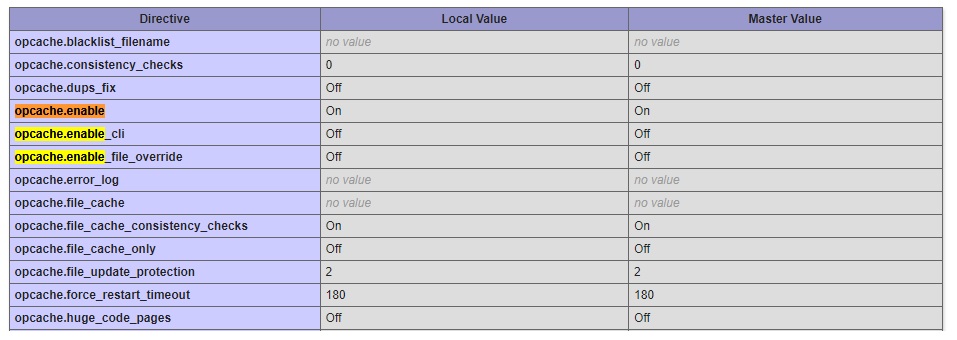
I could give you a script that tells you YES or NO, but I want you to learn to use a file that gives you all the PHP information, since it will let you check whatever you need.
- Create a file called _phpinfo.php
- Add a phpinfo(); inside the file.
<?php phpinfo(); ?>- Upload it to our hosting
- Open the url/_phpinfo.php
Now we need to look for opcache.enable in all that information. It must be ON in the “Local Value” column.
If it isn’t ON, contact your hosting company so they enable it for you.
Monitoring OPcache
If you liked OPcache and want to monitor and control it a bit more, I’ll leave you 2 resources in PHP (no CMS) and a WordPress plugin to try.
- PHP: OPcache-gui
- PHP: OPCacheGUI
- WordPress: WP OPcache