



HestiaCP is a free, open-source control panel that lets us manage web servers and control everything related to our website (emails, databases, files, logs).
Honestly, of all the panels I’ve tried, it’s the one I like the most.
HestiaCP as an Alternative to VestaCP
For those who don’t know, HestiaCP is a FORK of the VestaCP control panel, which didn’t receive many updates, and the direction of the ones it did get didn’t please the community either.
HestiaCP focuses above all on making server security a priority and always sticking to a line of open-source tools.
If a free control panel starts adding paid add-ons, it will most likely end up being paid.
cPanel/Plesk are paid, and if their add-ons triple the price of the licenses, that’s not what we’re looking for with HestiaCP.
Services Installed by HestiaCP
- Apache2 as the web server
- Nginx as a caching proxy
- PHP (php-fpm) with versions from 5.6 up to 8.x
- DNS server (bind)
- Email service
- MariaDB/MySQL and PostgreSQL
- SSL with Let’s Encrypt
- Firewall (fail2ban + iptables)
Installing HestiaCP
Installing HestiaCP, like any other hosting panel, is very simple. The only thing you need to keep in mind is the operating system, since it works with Ubuntu 22 (or 20) and Debian 12 (11 and 10 as well).
The first thing we’ll do is update the repositories. This is something you should always do before installing anything.
apt-get update Once our system is up to date, we’ll install the certificates with the following command
apt-get install ca-certificates -yNow we download the HestiaCP installer
wget https://raw.githubusercontent.com/hestiacp/hestiacp/release/install/hst-install.shFinally, we run it
bash hst-install.shInteractive Installer
The first thing the installer will do is check whether we have any software installed that could conflict with HestiaCP. If we do, it asks whether we want to uninstall it.
I recommend uninstalling whatever it asks you to, since, as in the case of ufw (firewall), it installs it again, but in the version it wants to use.
The next step asks for a valid email and a hostname (the hostname is the name of the machine, for example, hestiacp.mydomain.com). You need to create a DNS record for it and keep it so that you can later have the control panel with SSL and avoid leaking data.
Finally, it will tell you which applications it will install, and once we confirm, it will get to work on its own. It will tell you what it is installing, so you can follow the status of the installation.
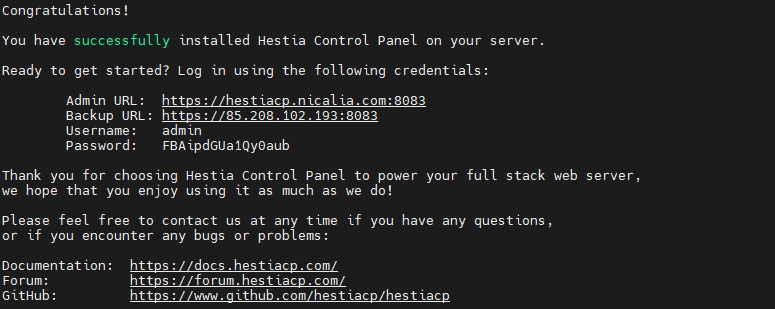
At the end, it will give you the administrator’s access details and the administrator account it created. It also asks you to reboot so that the configurations and installations made by HestiaCP can be loaded.